Shop from a Google Sheet
Paste a finds spreadsheet into search and shop every product in it.
Finds spreadsheets, the Google Sheets that list products with their pictures, prices and links, work on Ninja as they are. Paste the sheet's link into the search bar and we open it for you: every product it links to, ready to buy, with nothing to copy one link at a time.
It works with sheets made for any shopping agent, and with sheets whose owner has turned off downloading and copying. If you can open the sheet in your browser, we can usually read it.
Paste the link
- Open the sheet in Google Sheets and copy the link from your browser's address bar. A link to one tab works, and so does the sheet's share link.
- Paste it into the search bar on Ninja and press Enter. You need to be signed in.
We read the tab the link points to. A link that names no tab opens on the tab the sheet opens on in Google Sheets.
Or change the address
Already looking at the sheet? In your browser's address bar, change
docs.google.com to docs.ninjabuy.com (or ninjabuy.com) and press Enter.
The sheet opens on Ninja, on the same tab, at the same address it has on
Google with our name in front: that page is the sheet on Ninja, so you can
share it as it is.
Product links work the same way. A link copied from Kakobuy, Pandabuy, MuleBuy, CNFans or another shopping agent opens as the same product on Ninja.
Products view
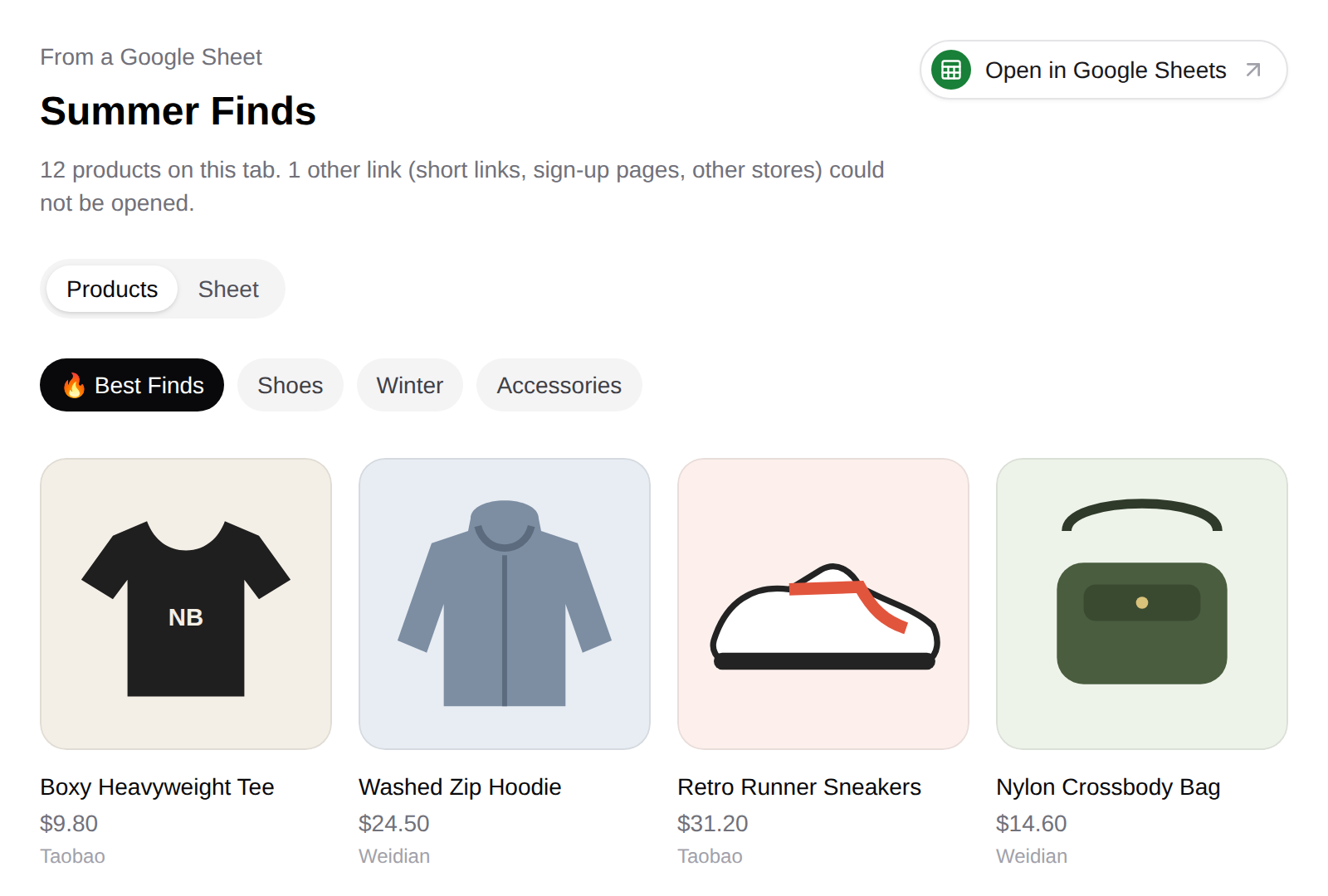
The Products view lists every product the tab links to as a card. The card shows the sheet's own picture and the sheet's own words, such as the name and price its author wrote. Open a card to see the product on Ninja with its live price, sizes and colors, then add it to your cart like any other item.
- Supported links: Taobao, Tmall, Weidian and 1688 products, including links that go through another shopping agent's site.
- The sheet's price is the author's note. What you pay is the price on the product page.
- Links we can't open are counted at the top of the page and left out. These include short links, sign-up pages and other stores.
- Big tabs show their first 200 products.
Sheet view
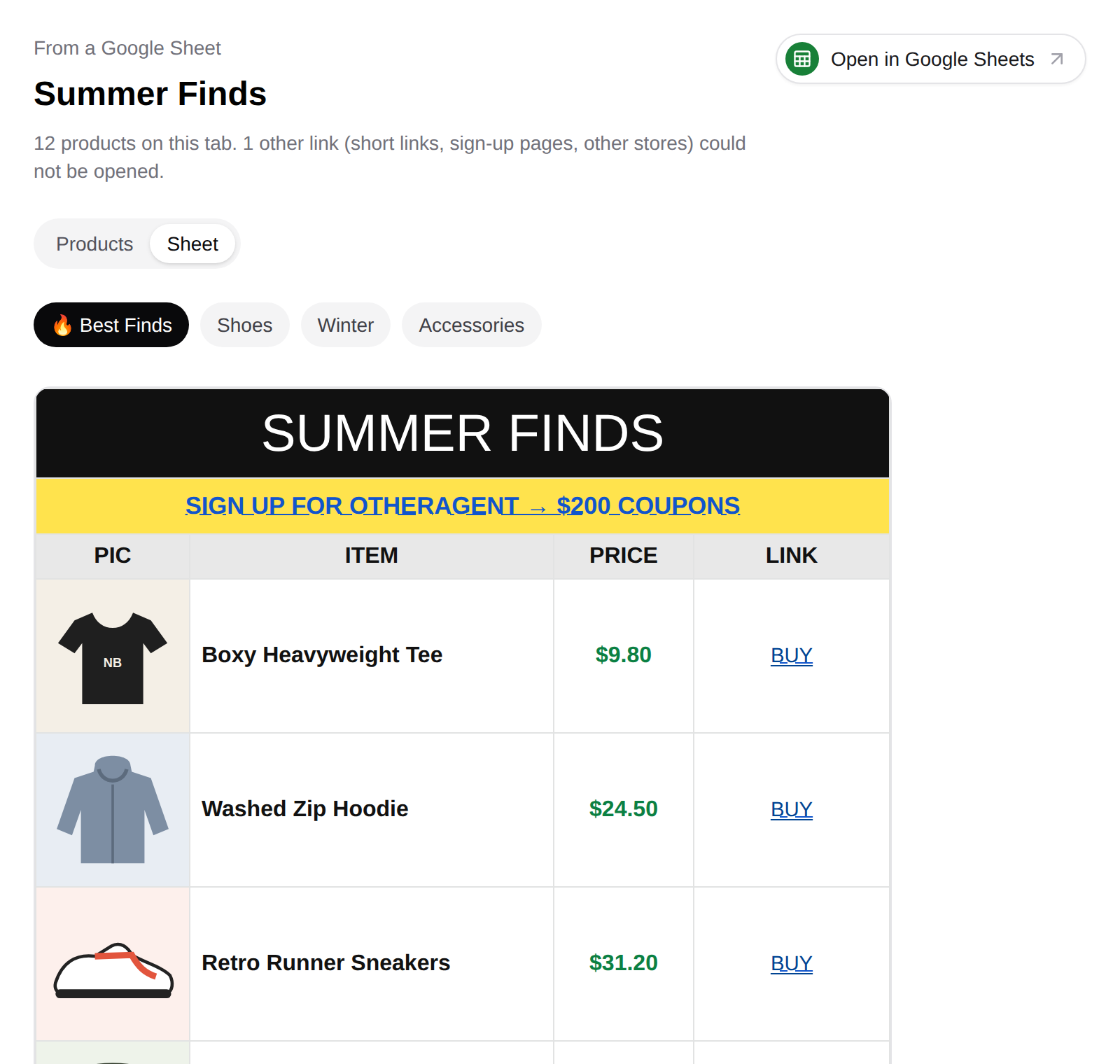
Switch to Sheet to see the whole tab as its author laid it out, with its columns, colors, pictures and notes. Product links in it open on Ninja, and a link to another tab or another Google Sheet opens in Ninja too. Every other link, such as a sign-up or referral link, is shown as plain text.
The Sheet view shows the first 300 rows of a tab. For the rest, open the sheet in Google Sheets.
Tabs
When a sheet has more than one tab, its tabs appear as buttons above the products. Pick one to read that tab. Tabs the owner has hidden are not shown.
Open in Google Sheets
The Open in Google Sheets button opens the original sheet in a new browser tab. Use it to check something against the source or to read comments, or when we couldn't read the sheet.
When a sheet can't be read
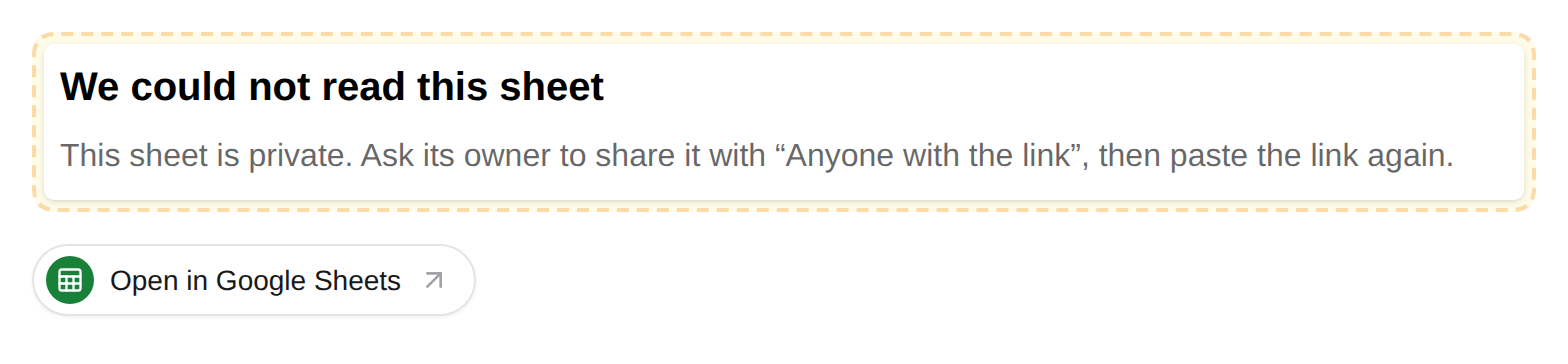
- Private sheet: we can only read sheets shared with "Anyone with the link". Ask the owner to change the sharing, then paste the link again.
- Blocked by Google: Google has taken the sheet down, and nobody can open it.
- Doesn't exist: check the link. The letters in it are case-sensitive, so a link that was retyped or changed to lowercase won't open.
- Google won't show a tab: pick another tab, or paste a link to a single product instead.
- Google isn't answering: we already asked twice. The sheet may still open with Open in Google Sheets.
A big sheet is never a problem: we read every row of a tab, however long it is. A very large tab can take a little longer to appear.
Pasting a sheet never changes it.